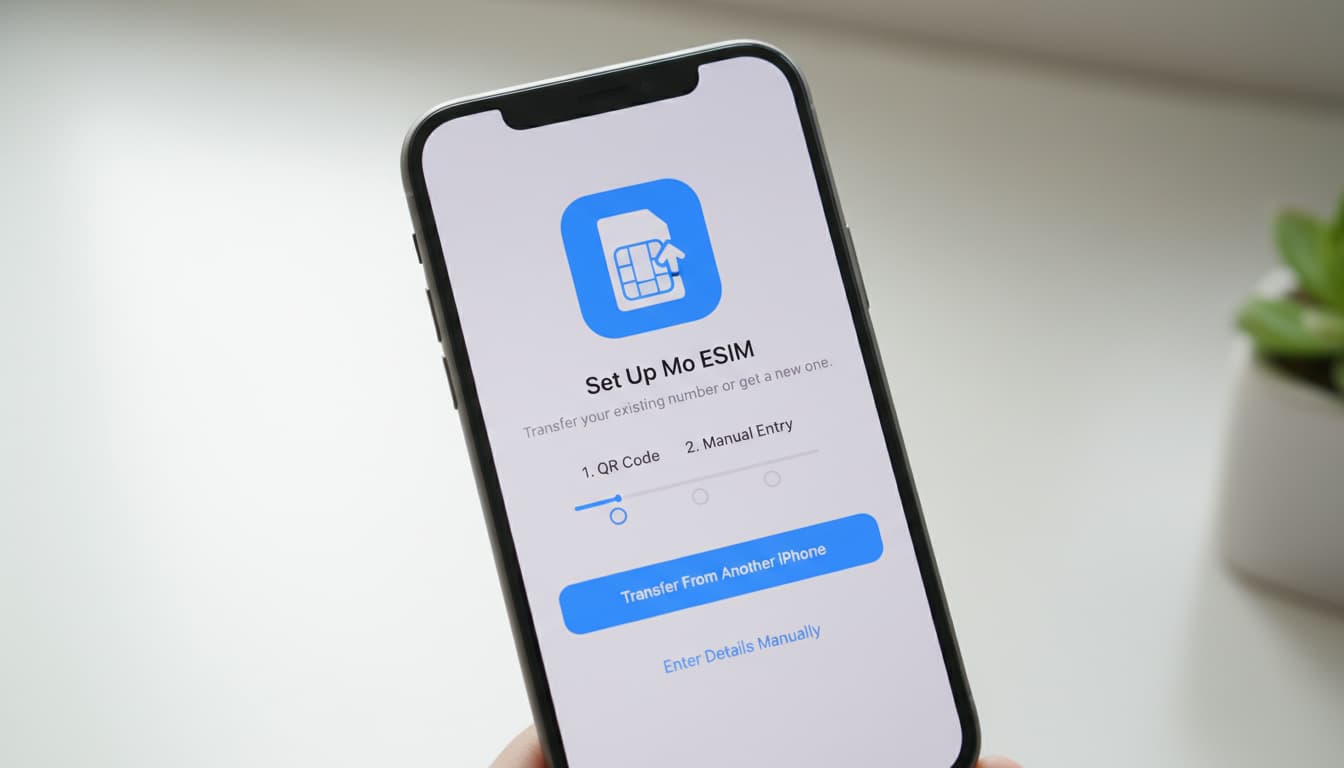

In short, what you'll discover in this article: a clear and complete guide on how to easily activate iPhone eSIM. You'll learn to check compatibility, prepare your device, follow activation steps, manage multiple lines, troubleshoot common issues, and optimize your eSIM when traveling.
1. Introduction: What is eSIM and Why Activate it on iPhone
The eSIM is a virtual SIM card built into your iPhone that replaces the traditional physical SIM card. It allows managing multiple mobile plans without swapping cards, offering greater flexibility and simplicity. Activating eSIM on iPhone makes managing your subscriptions easier, especially when traveling or separating work and personal life.
To understand how the iPhone eSIM works in detail, you can check our dedicated article on quest-ce-quune-esim.
2. Check Compatibility
2.1 Compatible iPhone Models
All recent iPhones support eSIM, especially from the iPhone XS, XR, and later models. Make sure your model is on this list to benefit from the feature.
2.2 Minimum Required iOS Version
Activating eSIM requires iOS 12.1 or later, but for optimal performance, iOS 17.4 or newer is recommended. This ensures support for the latest options and the best stability.
2.3 Carrier Compatibility (Points to Check)
Not all carriers support eSIM yet. Verify that your carrier supports iPhone eSIM and that your plan is compatible. Some carriers provide a QR code or an activation code to enter. To delve deeper into the difference between eSIM and traditional SIM card, check our guide difference-esim-carte-sim.
3. Before You Start: Prerequisites
3.1 Backup and iOS Update
Before any steps, back up your data via iCloud or iTunes and update your iPhone to the latest available iOS version. This prevents data loss and ensures perfect compatibility.
3.2 Have Internet Connection and QR or Carrier Credentials
A Wi-Fi or mobile connection is essential to activate the eSIM. Have the QR code provided by your carrier or the credentials (SM-DP+ and activation code) needed for manual setup.
3.3 Retrieve IMEI/MEID/ICCID if Requested
Some carriers request these numbers to activate the eSIM. You can find them in Settings > General > About.
4. Methods to Activate eSIM on iPhone
4.1 Activate via QR Code (Step-by-Step)
- Open the Camera app and scan the QR code you received.
- Tap the notification "Add Cellular Plan."
- Follow the on-screen instructions, enter the confirmation code if prompted.
- The plan will be added and activated automatically.
4.2 Activate via Carrier’s App or Website
Some carriers offer a dedicated app. Download it, log in, then follow the instructions to install the eSIM directly from the app.
4.3 Add a Mobile Plan Manually (Enter Provided Details)
- Go to Settings > Cellular > Add Cellular Plan.
- Select Enter Details Manually.
- Enter the SM-DP+ information and activation code provided.
- Confirm to add and activate the line.
4.4 Transfer eSIM from Another iPhone (iOS Protocol)
If you have an old iPhone with an eSIM, you can transfer the line to the new one via Settings > Cellular > Transfer Cellular Plan. Follow the steps for a quick and secure transfer.
For more installation details, our article comment-installer-une-esim perfectly complements this guide.
5. Detailed Step-by-Step Guide (with Recommended Screenshots)
For a visual and detailed tutorial, Apple’s official page explains each step precisely, from scanning the QR code to managing multiple plans, with tips adapted to iOS 17.4+ (Apple source).
6. Managing Multiple Lines and eSIM Settings
6.1 Choose the Default Line for Calls and Data
In Settings > Cellular, you can set which line to use by default for calls, SMS, and mobile data. This simplifies managing work and personal lines.
6.2 Name/Label and Switch Between Lines
Assign a name to each plan (e.g., “Work,” “Personal”) to easily distinguish them. You can also quickly switch between them as needed.
6.3 Delete or Disable an eSIM
To delete an eSIM, go to Settings > Cellular, select the line, then tap Remove Cellular Plan. You can also temporarily disable it.
7. Troubleshooting Common Issues
7.1 QR Not Recognized / Activation Failure
- Check the QR code clarity and your Internet connection.
- Restart your iPhone.
- Contact your carrier if the problem persists.
7.2 No Network After Activation
- Ensure the line is activated in settings.
- Check carrier coverage.
- Restart the device.
7.3 Common Error Messages and Quick Fixes
- Invalid activation code: re-enter it or request a new code.
- Plan not compatible: contact your carrier.
8. eSIM When Traveling and Costs
8.1 Buying a Local eSIM vs Roaming Plan
Buying a local eSIM at your destination is often cheaper than roaming. You can activate a local eSIM while keeping your main line.
8.2 Settings to Check for Roaming
Enable roaming in Settings > Cellular to use your eSIM abroad. Also, check rates and conditions with your carrier.
9. Security and Privacy
9.1 What to Do in Case of Loss/Theft (Remote Deletion, Locking)
Use Find My iPhone to remotely delete your eSIM plans and protect your data. Activation lock prevents unauthorized use.
9.2 Effects of Restore or Device Change
Restoring deletes eSIMs. Remember to back up your information and contact your carrier to reactivate or transfer your plans.
10. Conclusion and Call-to-Action
Activating eSIM on iPhone is simple if you follow this step-by-step guide. For any difficulties, don’t hesitate to contact your carrier or consult our other practical guides on skyda.co. Fully enjoy the benefits of eSIM for a flexible, modern mobile experience.
For a quick and secure setup, consider using recommended apps like those from carriers or eSIM providers, which greatly simplify setup and management of your lines.